Object Selection
Object Selection
Selecting with nothing running
With no command active:
| Action | Result |
|---|---|
| Move the cursor over an object | It highlights, so you can see what you are about to pick |
| Click an object | Selects it. Grips appear and the Properties panel fills in |
| Click, then click again in empty space | The two clicks define a selection window over everything inside |
| Drag from empty space and release | Same window, as a drag instead of two clicks |
| Click empty space once and press Esc | Clears the selection (Selection cleared.) |
Typing SELECT clears the current selection and prints a reminder of how to build a new one —
SELECT — click two corners for a window (default when no command is active). It does not open a
dialog, and it does not add a mode you were not already in.
Selecting during a command
Commands that need objects (MOVE, COPY, ROTATE, SCALE, DELETE, JOIN, ALIGN) behave the same way:
- If objects are already selected when you start the command, it uses that selection and skips the selection step.
- If nothing is selected, the command asks for a two-click window first.
TRIM and OFFSET are different — they take individual picks as part of their own workflow rather than a window.
Selection cycling
When several objects overlap under the cursor, GoSurvey cannot know which one you meant. The Selection panel lists the candidates so you can pick the right one.
- Open it with the SEL button on the status bar.
- It lists each selected entity by type and index —
Line 3,Circle 12,MTEXT 2,PDF Underlay 1. - Toggle any entry to add or remove that object from the selection.
- Press SEL again to close the panel.
Grips
Selected objects show grips — small blue squares at their endpoints, centres, and midpoints.
| Grip behaviour | Detail |
|---|---|
| Drag | Moves that vertex or feature, editing the geometry directly |
| Snapping | Grips honour object snap, so you can drag one exactly onto another feature |
| Ortho | Constrains the drag to horizontal or vertical from the grip start — a snap still wins |
| Grips as snap targets | Grips of selected objects are themselves snappable, regardless of the OSNAP toggle, and they beat every geometry snap |
| Esc | Cancels the drag and restores the original position |
Grip size is set in Settings → Selection → Grip size (px), from 2 to 20 pixels.
QUICKSELECT (QS)
Command: QUICKSELECT, QS Menu: Right-click ▸ Quick Select…
Builds a selection by property instead of by picking. Useful when you want every line on one layer, or every survey point above a given elevation.
QUICKSELECT — filter entities by type and property.
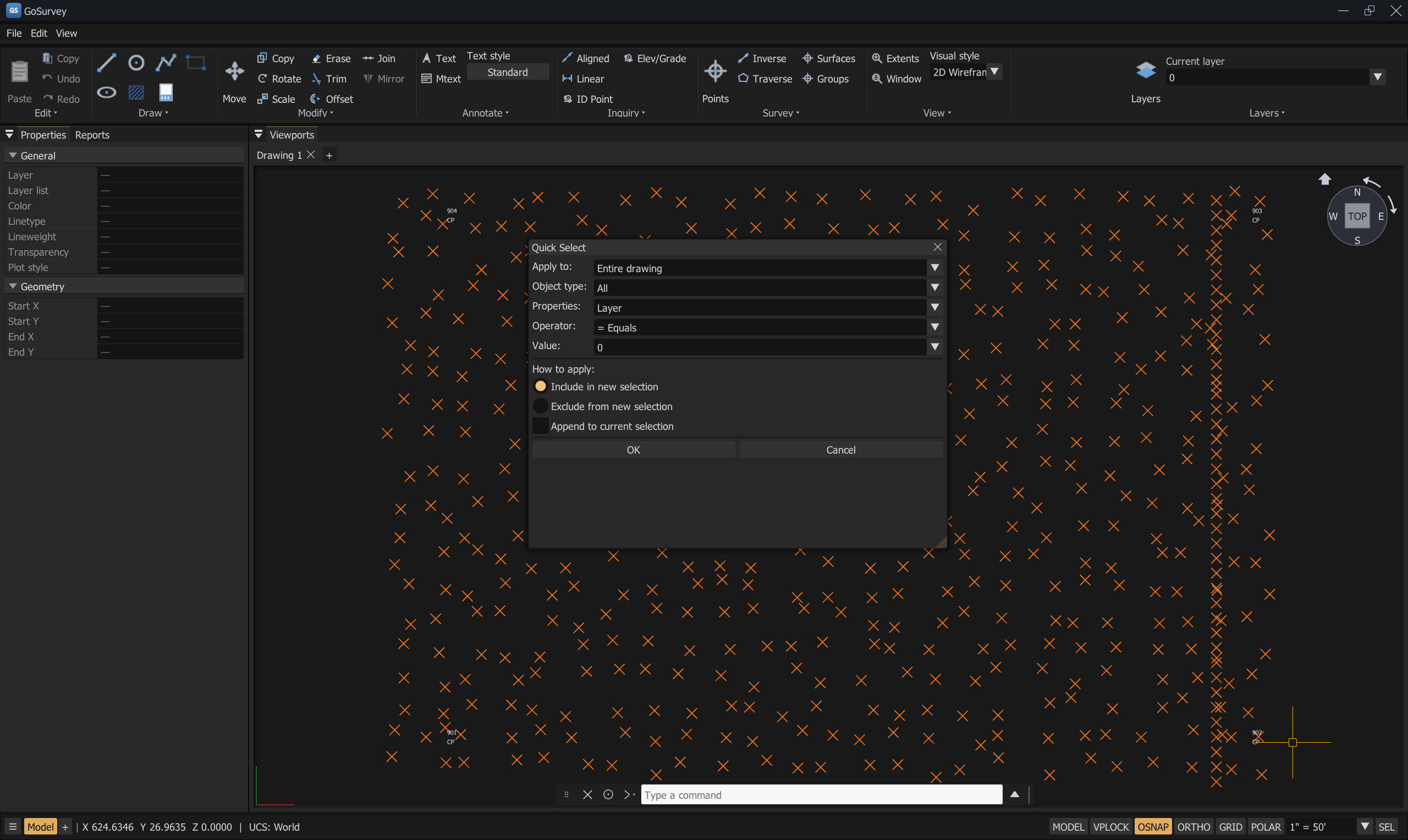
The dialog
| Field | Choices |
|---|---|
| Apply to: | Entire drawing, or Current selection |
| Object type: | Line, Polyline, Circle, Arc, Ellipse, Text, MText, Dim (Aligned), Dim (Linear), Dim (Angular), PDF Underlay, survey point |
| Properties: | The properties that apply to the chosen type — Layer, Color, ID, Elevation, Easting, Northing, Description, Closed, and so on |
| Operator: | = Equals, <> Not Equal, > Greater Than, < Less Than |
| Value: | A dropdown where the property has known values (the named colour palette, the layers present in the drawing, Yes/No) or a typed value otherwise |
| How to apply: | Include in new selection · Exclude from new selection · Append to current selection |
Press Select All to apply, or Cancel to close without changing the selection.
Example — select every line on the TOPO layer
QS- Apply to: Entire drawing
- Object type: Line
- Properties: Layer · Operator:
= Equals· Value:TOPO - How to apply: Include in new selection
- Select All
Select similar
Right-click with something selected ▸ Select similar. Selects the other objects in the drawing that match what you have picked.
Object isolation
Useful when a drawing is too dense to work in.
| Command | Aliases | Menu | Effect |
|---|---|---|---|
ISOLATEOBJECTS |
ISOLATE |
Right-click ▸ Isolate Objects ▸ Isolate Objects | Hides everything except the selection |
HIDEOBJECTS |
— | Right-click ▸ Isolate Objects ▸ Hide Objects | Hides the selected objects |
UNISOLATEOBJECTS |
UNISOLATE |
Right-click ▸ Isolate Objects ▸ End Object Isolation | Restores everything isolation hid |
Isolation is a display state. It does not delete anything and it is not saved as a drawing edit.
The right-click menu
What right-click does depends on the context, and each context is configurable.
Contexts
| Context | When | Default behaviour |
|---|---|---|
| Default Mode | No command, nothing selected | Repeat the last command |
| Edit Mode | No command, objects selected | Open the shortcut menu |
| Command Mode | A command is running | Repeat / shortcut menu, per your setting |
Command Mode menu
Two items only:
- Enter — same as pressing Enter at the current prompt.
- Cancel — cancels the running command.
Default / Edit Mode menu
| Item | What it does |
|---|---|
| Repeat <command> | Re-runs the last command by name |
| Recent Input ▸ | The same typed-command history the command bar dropdown shows, newest first. Choosing one re-submits it |
| Isolate Objects ▸ | Isolate Objects · Hide Objects · End Object Isolation |
| Clipboard ▸ | Cut · Copy · Paste · Paste at Original Coordinates |
| Basic Modify Tools ▸ | Move · Copy Selection · Rotate · Scale · Erase · Offset · Trim · Join (needs a selection) |
| Pan / Zoom / Free Orbit | Starts the matching navigation command |
| Quick Select… | Opens the Quick Select dialog |
| Options… | Opens the Options dialog |
| Select similar | Selects matching objects |
| Selection… | Opens the Selection panel |
| Clear selection | Deselects everything |
Time-sensitive right-click
Settings → User Preferences → Right-click Customization… offers a time-sensitive mode:
- Quick click = ENTER
- Longer click (default 250 ms, configurable) = open the shortcut menu
With time-sensitive mode on, the menu opens on release or when the hold time elapses, rather than on press. A selection still routes through Edit Mode.
Escape behaviour
Esc walks back one layer at a time:
- If a modal such as the copy-duplicate dialog is open — cancels it.
- If the MTEXT editor is open — cancels the edit.
- If a grip drag is running — restores the original position.
- If a command is running — cancels the command (or, in
2Pbearing-pick mode, only the pick). - Otherwise — clears the selection, closes the Create Points panel, and cancels any pending zoom.
Related
Object Snaps · Modify Tools · Properties · Keyboard Shortcuts